
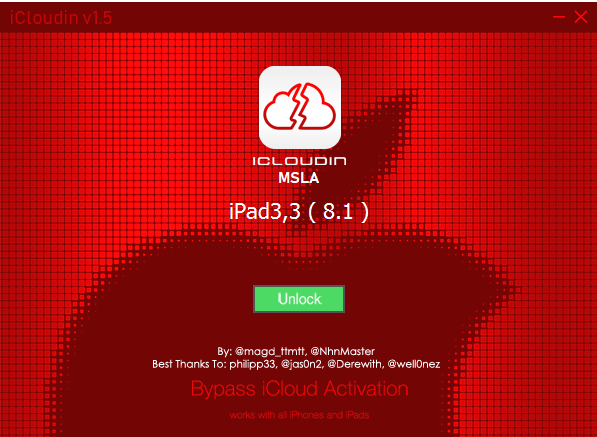
Welcome to our complete guide on how to download and install iCloudin MSLA. This tutorial will provide you with a detailed step by step walkthrough to ensure that you can install the software effectively and smoothly. iCloudin MSLA is a powerful and reliable tool designed to unlock Apple devices that are locked by iCloud. Read on to get all the relevant information you need to get started.
iCloudin MSLA
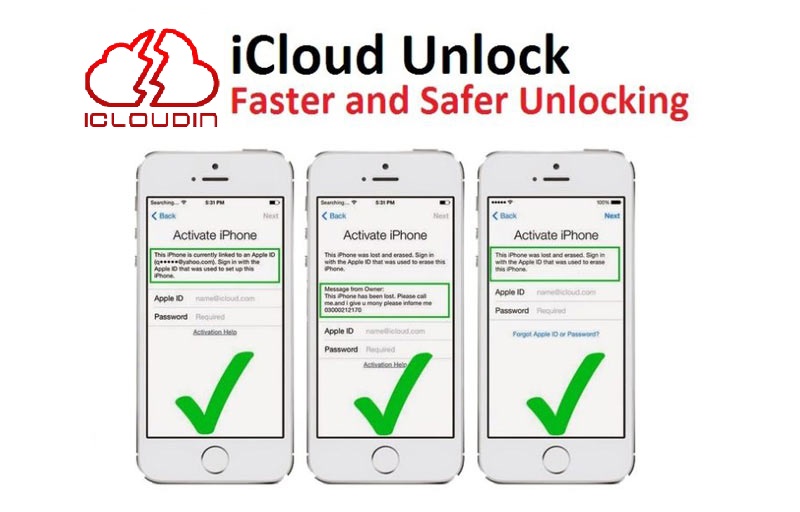
Before we dive into the specific steps, it is helpful to understand what iCloudin MSLA is and why it is such a valuable tool. iCloudin MSLA is a software developed to remove iCloud activation lock on Apple devices, such as iPhones, iPads and iPods. This software is especially useful if you have forgotten your iCloud credentials or if you have purchased a second-hand device that is locked. The iCloud lock is a security measure implemented by Apple to protect user data in case the device is lost or stolen. However, it can also cause inconvenience if you are unable to access your iCloud account. This is where iCloudin MSLA comes into play, providing an effective solution to regain access to your device.
Prerequisites for Downloading and Installing iCloudin MSLA
Before downloading and installing iCloudin MSLA, make sure you meet the following requirements:
- Windows computer: Currently, iCloudin MSLA is designed to run on Windows operating systems. Make sure you have a computer running Windows 7, 8, 8.1 or 10.
- Internet connection: You will need a stable Internet connection to download the software and install any necessary updates.
- USB cable: A USB cable to connect your Apple device to the computer.
- Disk Space: Make sure you have at least 100 MB of free space on your hard drive for the software installation.
- Administrator Permissions: You must have administrator permissions on your computer to install the software.
Step 1: Visit the Official Website
To get started, open your web browser and visit the official iCloudin MSLA website. It is crucial that you download the software only from the official source to avoid fake or malicious versions that could harm your device or compromise your security.
Step 2: Download the Software
Once on the website, look for the download section. Here you will find the download button for iCloudin MSLA. Click the download button to start the process. The installation file will automatically begin downloading to your default download folder. This file is usually an .exe installer that contains all the necessary components for the software.
Step 3: Run the Installer
Once the download is complete, open the download folder on your computer and locate the installation file (e.g. “iCloudin_MSLA_Setup.exe”). Double-click the file to run it. An installation window will appear and guide you through the process.
Step 4: Follow the Installation Instructions
Follow the on-screen instructions to complete the installation. Each step of the installation process is detailed below:
Acceptance of Terms and Conditions
On the first screen of the installer, you will be asked to read and accept the terms and conditions of the software. It is important that you read these terms carefully to understand the terms of use. Once you agree, check the acceptance box and click “Next”.
Installation Location Selection
The installer will ask you to choose a location on your hard drive where iCloudin MSLA will be installed. You can accept the default location or select a different folder. Once you have selected the location, click “Next”.
Installation of Additional Components
During the installation process, you may be asked to install additional components required for iCloudin MSLA to work, such as Microsoft Visual C++ Redistributable libraries or drivers specific to your Apple device. Accept these installations and follow the instructions provided.
Step 5: Complete the Installation
After following all the above steps, the installer will start copying the necessary files to your hard drive and configure the software. This process may take a few minutes. Once the installation is complete, you will receive an on-screen notification that iCloudin MSLA has been successfully installed.
Step 6: Start iCloudin MSLA
Once the installation is complete, you can start iCloudin MSLA in two ways:
- Desktop Shortcut: During installation, a shortcut will have been created on your desktop. Double-click the iCloudin MSLA icon to open the software.
- Start Menu: Alternatively, you can search for iCloudin MSLA in the Windows Start menu and select it from there.
Step 7: Initial Configuration
When you open iCloudin MSLA for the first time, you may be prompted to complete an initial setup. This may include selecting your preferred language and setting some basic software options. Follow the on-screen instructions to complete this setup.
Step 8: Verification of Updates
To make sure you are using the latest version of iCloudin MSLA, the software can automatically check for available updates. If updates are found, follow the instructions to download and install them. Keeping the software up to date is crucial to ensure compatibility with the latest iOS versions and to improve security.
Troubleshooting Common Problems During Installation
Although the installation process is usually straightforward, some problems may arise. Below are some solutions to common problems:
Problem 1: Installer Does Not Open
If the installer does not open, make sure your computer meets the above system requirements. Also check that the installation file is not corrupted. If necessary, re-download the file from the official website.
Problem 2: Administrator Permissions
If you encounter an error message indicating that you need administrator permissions, make sure you are using an administrator account on your computer. You can also right-click on the installation file and select “Run as administrator”.
Problem 3: Conflict with Antivirus Software
Some antivirus software may block the installation of iCloudin MSLA. If you suspect this is the case, temporarily disable your antivirus software and retry the installation. Remember to re-enable your antivirus once the installation is complete.
Tips and Tricks for a Successful Installation
To make sure your iCloudin MSLA installation goes as smoothly as possible, keep the following tips and tricks in mind:
- Download from Official Source: Always download iCloudin MSLA from official website to avoid malicious versions of the software.
- Keep your system up to date: Make sure your Windows operating system is up to date with the latest security patches and updates.
- Sufficient Disk Space: Verify that you have enough disk space before starting the installation to avoid interruptions.
- Stable Internet connection: Use a stable Internet connection to download the software and necessary updates.
Frequently Asked Questions about iCloudin MSLA Installation
Currently, iCloudin MSLA is designed to run on Windows operating systems. We are working on a Mac compatible version, which will be available soon. We recommend that you keep checking our website for updates on the availability of the Mac version.
Yes, downloading and installing iCloudin MSLA from the official website is safe. We ensure that our software is free of malware and viruses. In addition, the software is regularly updated to maintain high security standards.
If the installation fails, first check the system requirements to make sure your computer is compatible. If you continue to have problems, contact our technical support team for assistance. We are here to help you solve any problems you may encounter.
Conclusion
Installing iCloudin MSLA is a simple and straightforward process that will allow you to unlock your Apple device in no time. By following the steps detailed in this guide, you can ensure that the software is installed correctly and ready for use. If you have any questions or need further assistance, please do not hesitate to contact our technical support team. We are here to help you every step of the way.
Download iCloudin MSLA today and regain control of your Apple device quickly and securely.